Here are some steps you can make for debugging this.
You can test import for new custom fields in Custom javaScript code after adding it to eazyBI advanced settings. Do not use any javascript. Test it with some issues. eazyBI will get the code from advanced settings.
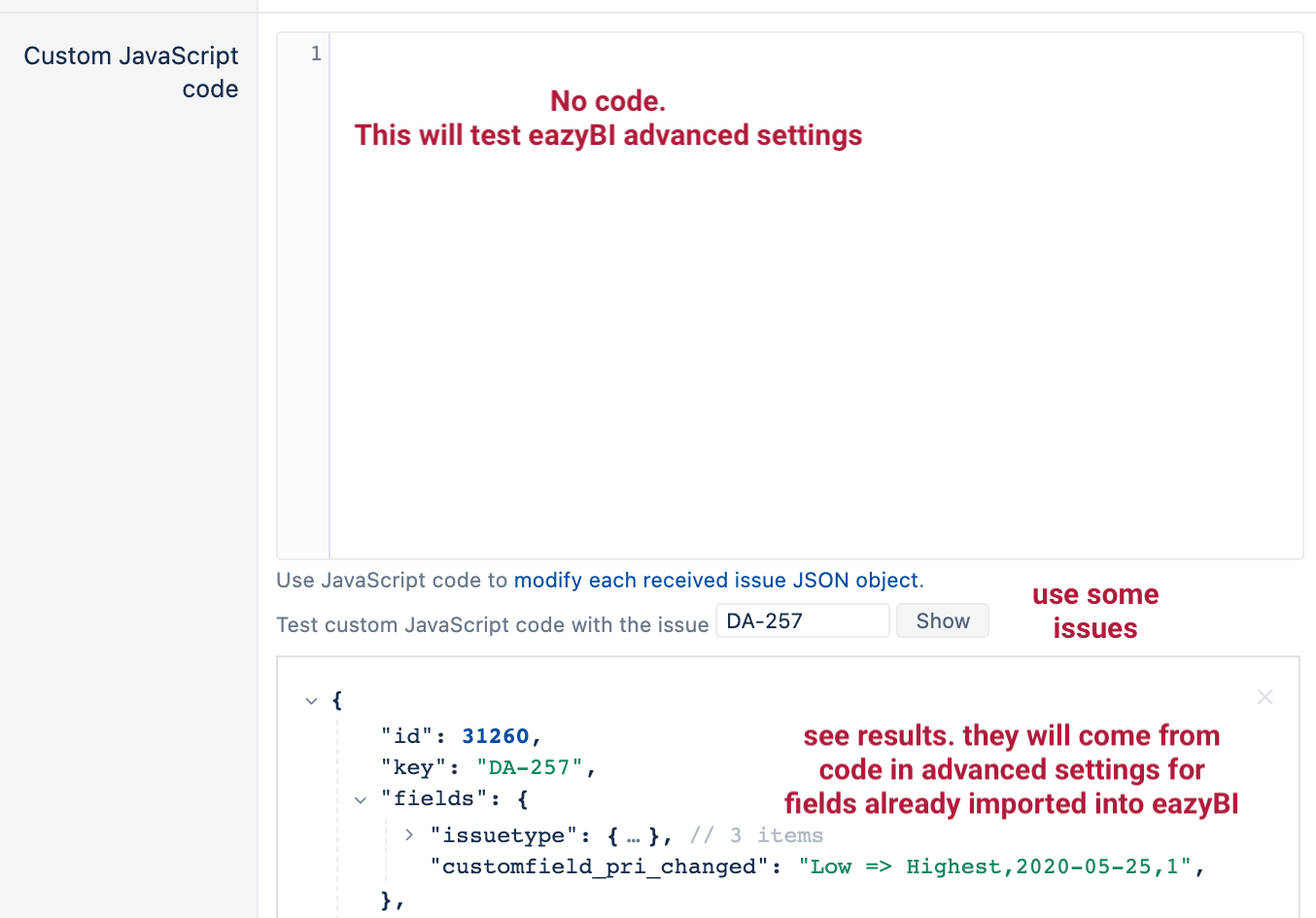
When you are not using any javascript in import options custom JavaScript code, eazyBI will show results for imported fields anyway.
Typo errors are quite common.
Make sure you assigned the value to the field you defined.
Custom field ID (customfield_pri_changed) from the definition:
[jira.customfield_pri_changed]
Should match the field name customfield_pri_changed you assigned the values:
issue.fields.customfield_pri_changed = priorityChanges.join("\n");
The pattern used in definitions is important as well. For example, I typically like to copy the field’s ID into the results field to make sure it is correct.
If you have any changes in the definitions, please run full data re-import to make it work. eazyBI runs incremental imports by default and might not recognize changes in eazyBI advanced settings.
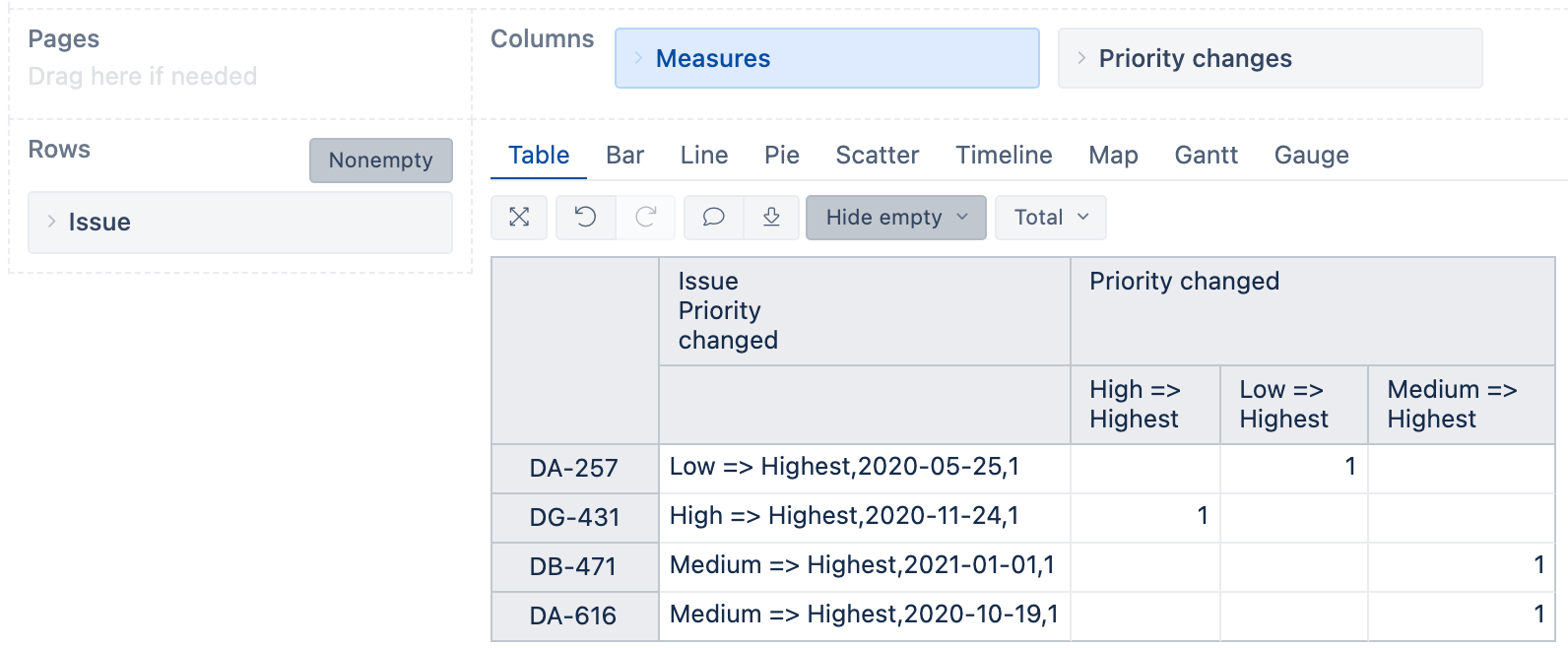
Test import results in eazyBI report.
The current field is quite complex. This is because you imported two new fields filling in values with one script. It is more complex for testing in this case.
I would suggest checking the values in property Issue Priority changed. It should match the results in JavaScript.
The last step you can make, if nothing above helps, is reset the field import for those two fields.
Please use double full imports for this:
- Remove both fields from import options (any selection) run an import. This will delete any previous setup for those fields.
- Select back both fields for import. Run an import. This will create new data structures in eazyBI.
If even this does not help, don’t hesitate to get in touch with us via support@eazybi.com.
Daina / support@eazybi.com